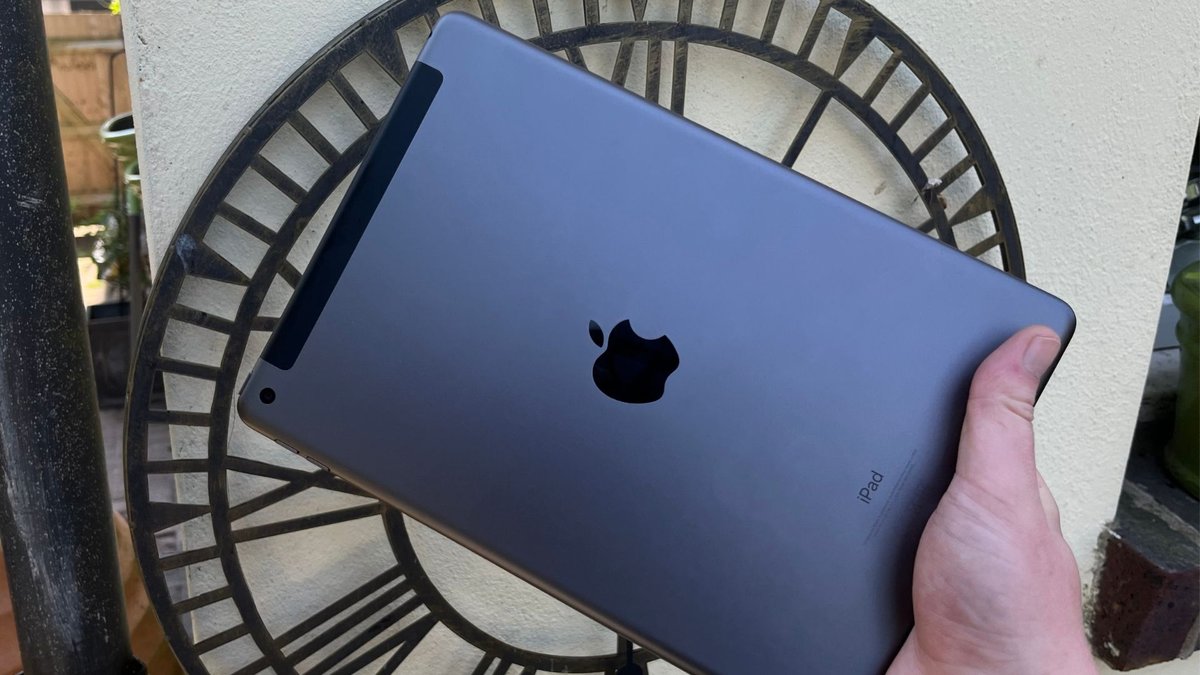
Congratulations! That gleaming new iPad 9th Gen is more than just a tablet; it's a window into endless possibilities, a portable studio, and a powerful productivity tool all rolled into one. But before you can dive into your favorite apps or unleash your creativity, there's that crucial first step: getting it set up just right.
Don't let the initial screens intimidate you. Think of this as your friendly, expert guide to a seamless setup experience. We'll walk through everything from unboxing to customizing your first settings, addressing those common questions, and ensuring you feel confident using your new device right away.
Your iPad 9th Gen Setup: At a Glance
- Prep is Key: Have your Wi-Fi password, Apple ID, and an old device/backup ready.
- Charge Up: Ensure at least 50% battery before starting.
- Time Allotment: Plan for 15-30 minutes for the initial setup.
- Data Transfer Options: Choose wisely based on whether you're starting fresh, coming from another iPhone/iPad, or even an Android device.
- Security First: You'll set up Touch ID and a passcode to protect your data.
- No Rush: Take your time through each step; you can always adjust settings later.
Preparing for Liftoff: What You Need Before You Start
Before you even press that power button, a little preparation goes a long way. Think of it like packing for a trip: having your essentials ready ensures a smooth journey.
The Absolute Essentials: Gather Your Digital Keys
- Power Up (at least halfway!): Your iPad should have a minimum of 50% battery charge. While the setup process doesn't drain a massive amount of power, it's a bad idea for your iPad to die mid-configuration. Charge it up fully before you begin, or keep it plugged in.
- Your Wi-Fi Credentials: An internet connection is non-negotiable for setup. Have your Wi-Fi network name (SSID) and password written down or easily accessible.
- Your Apple ID (and Password): This is your digital passport to the Apple ecosystem. It grants you access to the App Store, iCloud, Apple Music, FaceTime, and more. If you already have one, excellent! If not, you'll have the option to create a new, free Apple ID during setup. Remember your password, and if you use two-factor authentication, have your trusted device nearby.
- Time and Patience: Setup usually takes 15-30 minutes, depending on whether you're transferring data. Don't rush it. Find a comfortable spot where you won't be interrupted.
- Original Packaging: Keep the box and all its contents (especially the charging brick and cable) nearby until you've confirmed your iPad is fully functional and set up to your liking. It simplifies any potential returns or warranty claims, however unlikely.
Planning Your Data Migration: Coming from Another Device?
If this isn't your first rodeo with a digital device, you'll likely want to bring your old photos, contacts, apps, and settings along for the ride.
- From an iPhone or another iPad:
- Ensure your previous device is running iOS 11 / iPadOS 13 or later. The newer the software, the smoother the transfer.
- For a complete data transfer using "Quick Start" (highly recommended), both devices should ideally be running iOS 12.4 / iPadOS 13 or later and remain near each other, plugged in, for the duration.
- iCloud Backup Tip: If your old device's iCloud storage is full, Apple offers a temporary free backup for up to three weeks from your new iPad's purchase date. Find this in
Settings > General > Transfer or Reset [device] > Get Startedon your previous device. This is a lifesaesaver for those with limited iCloud storage. - From an Android device:
- You'll need an Android device running Android 4.0 or later.
- Download the "Move to iOS" app from the Google Play Store onto your Android device before you begin.
- From an existing backup:
- If you've previously backed up an iPhone or iPad to iCloud or a computer (iTunes/Finder), you can restore from that backup. Just make sure it's current!
Your First Steps: Unboxing to "Hello"
Now for the fun part! Let's get that screen lit up.
Step 1: Powering On Your iPad
Locate the top button on the right edge of your iPad when held vertically (or the top edge when held horizontally). Press and hold it down until you see the familiar Apple logo appear on the screen.
- Troubleshooting Tip: If nothing happens, your battery might be completely drained. Plug your iPad into power using the included USB-C cable and adapter, and give it a few minutes to charge before trying again.
Once the Apple logo gives way, you'll be greeted by the iconic "Hello" screen in multiple languages. Swipe up from the bottom of the screen (or press the Home button on the 9th Gen iPad) to begin. - Accessibility Note: Apple builds accessibility right in. At the "Hello" screen, you can triple-click the Home button (on the iPad 9th Gen) or the top button to activate VoiceOver, which reads aloud what's on the screen. For Zoom, double-tap with three fingers. It's smart to know these options are there, even if you don't need them now.
Step 2: Choosing Your Language and Region
The iPad will prompt you to select your preferred language and region. This determines basic date, time, and currency formats. Choose what's appropriate for you, then tap "Continue."
Getting Connected: Wi-Fi & Privacy Basics
With your basic language settings in place, it's time to get your iPad online and review some important privacy information.
Step 3: Connecting to Wi-Fi
Your iPad will display a list of available Wi-Fi networks.
- Select your home network from the list.
- If it's a secured network (which most are), you'll be prompted to enter its password.
- Tap "Join" or "Next."
Once connected, your iPad will automatically activate itself with Apple, a quick process that ensures it's a legitimate device.
Step 4: Data & Privacy
You'll see a "Data & Privacy" screen. This is Apple's commitment to transparency about how they handle your data. Read through the brief overview, then tap "Continue."
- Important: Rest assured, you can always adjust more detailed privacy settings later by going to
Settings > Privacyon your iPad. This initial screen is just an introduction.
Bringing Your World Over: Data Transfer Options
This is where your prep work really pays off. On the "Transfer Your Apps & Data" screen, you'll have several choices:
Option 1: Set Up as New iPad (Recommended for True Beginners)
If this is your very first Apple device, or if you simply want a completely fresh start without any baggage from previous devices, choose "Don't Transfer Apps & Data" or "Set Up as New iPad." This provides the cleanest slate and is the fastest setup method. You'll download apps and manually sign into accounts later.
Option 2: Quick Start - From Another Apple Device
This is the easiest and fastest way to transfer your settings, Apple ID, and iCloud Keychain from an existing iPhone or iPad (running iOS 11 / iPadOS 13 or later).
- Keep your existing iPhone or iPad close to your new iPad.
- Your old device will display a "Set Up New iPad" message. Tap "Continue."
- A unique, swirling pattern will appear on your new iPad. Use your old device's camera to scan this pattern.
- Follow the on-screen prompts to confirm your identity (using Face ID, Touch ID, or your passcode on the old device).
- You can then choose to restore a recent backup or transfer data directly from your old device. For full data transfer, both devices need iOS 12.4 / iPadOS 13+ and should remain near and plugged in during the process.
Option 3: Restore from iCloud Backup
If you have a recent iCloud backup of a previous iPhone or iPad, this is your path.
- Select "Restore from iCloud Backup."
- Sign in with your Apple ID and password.
- Choose the backup you wish to restore from (usually the most recent one).
- Your apps and data will begin downloading to your new iPad. This can take some time, so keep your iPad connected to Wi-Fi and power.
Option 4: Move Data from Android
Apple makes it relatively easy to switch.
- On your iPad's "Transfer Your Apps & Data" screen, select "Move Data from Android."
- On your Android device, open the "Move to iOS" app (which you downloaded earlier).
- Tap "Continue" on both devices and agree to the terms.
- On your iPad, a ten-digit or six-digit code will appear. Enter this code into your Android phone.
- On your Android device, you'll see options for what data to transfer (contacts, message history, camera photos/videos, web bookmarks, mail accounts, and calendars). Select what you want and tap "Next."
- The transfer will begin. Once complete, you can continue setting up your iPad.
- Critical Note for Android users: The "Move to iOS" option is ONLY available during the initial setup. If you complete the iPad setup and then decide you want to use "Move to iOS," you'll have to erase your iPad (
Settings > General > Transfer or Reset iPad > Erase All Content and Settings) and start the setup process over. Otherwise, you'll have to manually transfer data later.
Unlocking Apple's Ecosystem: Apple ID & Security
These steps solidify your iPad's identity and keep your information safe.
Step 6: Apple ID Sign In
This is where your Apple ID comes in!
- Enter your Apple ID email address and password.
- If you don't have one, choose "Forgot password or don't have an Apple ID?" to create a new one for free.
- If you have two-factor authentication enabled (highly recommended!), you'll receive a verification code on one of your trusted devices. Enter this code on your iPad.
Signing in links your iPad to all Apple services, including the App Store for downloading apps, iCloud for syncing data, and more.
Step 7: Terms & Conditions
Review Apple's Terms and Conditions. These are the legal agreements for using Apple's software and services. Tap "Agree" to proceed. You'll typically need to agree twice to confirm.
Step 8: Securing Your iPad with Touch ID
The iPad 9th Gen features Touch ID, which uses your fingerprint to unlock your device and authorize purchases.
- Follow the on-screen instructions to set up Touch ID. You'll be asked to repeatedly lift and place your finger (typically your thumb or index finger) on the Home button until your fingerprint is fully registered.
- You'll register the primary area of your fingerprint, then adjust your grip slightly to capture the edges.
This biometric security is incredibly convenient and significantly more secure than relying solely on a passcode.
Step 9: Create Your Passcode
Even with Touch ID, a good old-fashioned passcode is essential as a backup and for certain security operations.
- You'll be prompted to create a 6-digit passcode. This is the recommended default for stronger security.
- Tap "Passcode Options" if you prefer a 4-digit numeric code, a custom numeric code, or a custom alphanumeric code (a mix of letters and numbers). We generally advise sticking with the 6-digit option or stronger.
- Choose something memorable but not obvious (avoid "123456" or your birthdate).
- Re-enter your passcode to confirm.
Beyond the Setup Screen: Your First Few Minutes
Once the core setup is complete, your iPad will display "Welcome to iPad." Swipe up (or press the Home button) to reach your Home Screen!
You're in! Take a moment to breathe and admire your new device. Now, you can start exploring. Here are a few initial things you might consider doing:
- Explore the App Store: Start downloading your favorite apps.
- Dive into Settings: Personalize wallpapers, notification preferences, display brightness, and more.
- Check for Software Updates: Go to
Settings > General > Software Updateto ensure you're running the latest version of iPadOS. This often includes crucial security patches and new features.
Remember, the iPad 9th Gen is a robust device, perfect for everything from streaming to creative work. Its powerful A13 Bionic chip ensures smooth performance, whether you're gaming or multitasking. For those needing ample space for apps, photos, and creative projects, the iPad 9th Gen 256GB model offers generous storage that handles most users' needs with ease.
Common FAQs: Troubleshooting & Smart Tips
Even with a comprehensive guide, questions pop up. Here are some of the most frequently asked questions about iPad setup and initial use:
My iPad won't turn on! What do I do?
Most likely, the battery is completely drained. Plug your iPad into its charger and let it charge for at least 15-30 minutes before trying to power it on again. If it still doesn't respond, try a different outlet, charging cable, or power adapter to rule out a faulty accessory.
Do I need Wi-Fi for setup?
Yes, an internet connection (typically Wi-Fi for the iPad 9th Gen) is essential for activating your iPad with Apple, signing into your Apple ID, and downloading any necessary software updates or app data during the setup process.
Can I skip setting up an Apple ID?
While technically possible to defer signing in, it's strongly not recommended. Without an Apple ID, you cannot download apps from the App Store, use iCloud, access Apple services like iMessage or FaceTime, or fully back up your device. Your iPad's functionality will be severely limited. It's best to create one during setup if you don't already have one.
I forgot my Apple ID password! How do I reset it?
If you forget your Apple ID password, you can reset it on another trusted Apple device (if you have one) or via iforgot.apple.com. You'll typically need to answer security questions, receive a code on a trusted phone number, or use account recovery.
Can I change my passcode or Touch ID settings later?
Absolutely! All security settings can be changed after setup. Go to Settings > Touch ID & Passcode to add more fingerprints, remove existing ones, change your passcode, or turn off Touch ID altogether (though we don't recommend disabling it for security reasons).
How do I update iPadOS after setup?
Apple regularly releases updates for iPadOS. To check for and install updates, go to Settings > General > Software Update. Your iPad will check for available updates and prompt you to download and install them. It's always a good idea to keep your software up to date for the latest features and security.
What about accessories like the Apple Pencil or Smart Keyboard?
The iPad 9th Gen supports the 1st Generation Apple Pencil and the Smart Keyboard. These accessories connect easily once your iPad is set up.
- Apple Pencil (1st Gen): Remove the cap and plug it into your iPad's Lightning port (the charging port). Your iPad will usually prompt you to pair it.
- Smart Keyboard: Simply align the Smart Connector on the side of your iPad with the magnetic connector on the keyboard. It will connect instantly, no Bluetooth pairing needed.
How do I maximize my iPad's battery life?
A few quick tips:
- Adjust Brightness: Lower your screen brightness.
- Wi-Fi/Bluetooth: Turn off Wi-Fi or Bluetooth when not in use (though generally minor drain).
- Background App Refresh: Limit which apps refresh in the background (
Settings > General > Background App Refresh). - Location Services: Review which apps use location services (
Settings > Privacy & Security > Location Services). - Auto-Lock: Set your iPad to auto-lock after a shorter period (
Settings > Display & Brightness > Auto-Lock).
Ready to Explore: Your Next Steps with Your iPad
With setup complete and those common questions answered, you're now fully equipped to enjoy your iPad 9th Gen. From this point, the world of iPadOS is yours to command.
Take some time to explore the pre-installed apps, download new ones that suit your interests, and truly make the device your own by customizing widgets, wallpapers, and notification settings. Your iPad is a powerful, intuitive tool designed to adapt to your life, whether you're using it for work, learning, creativity, or simply unwinding with your favorite entertainment.
Enjoy your new iPad experience—it’s just getting started!